


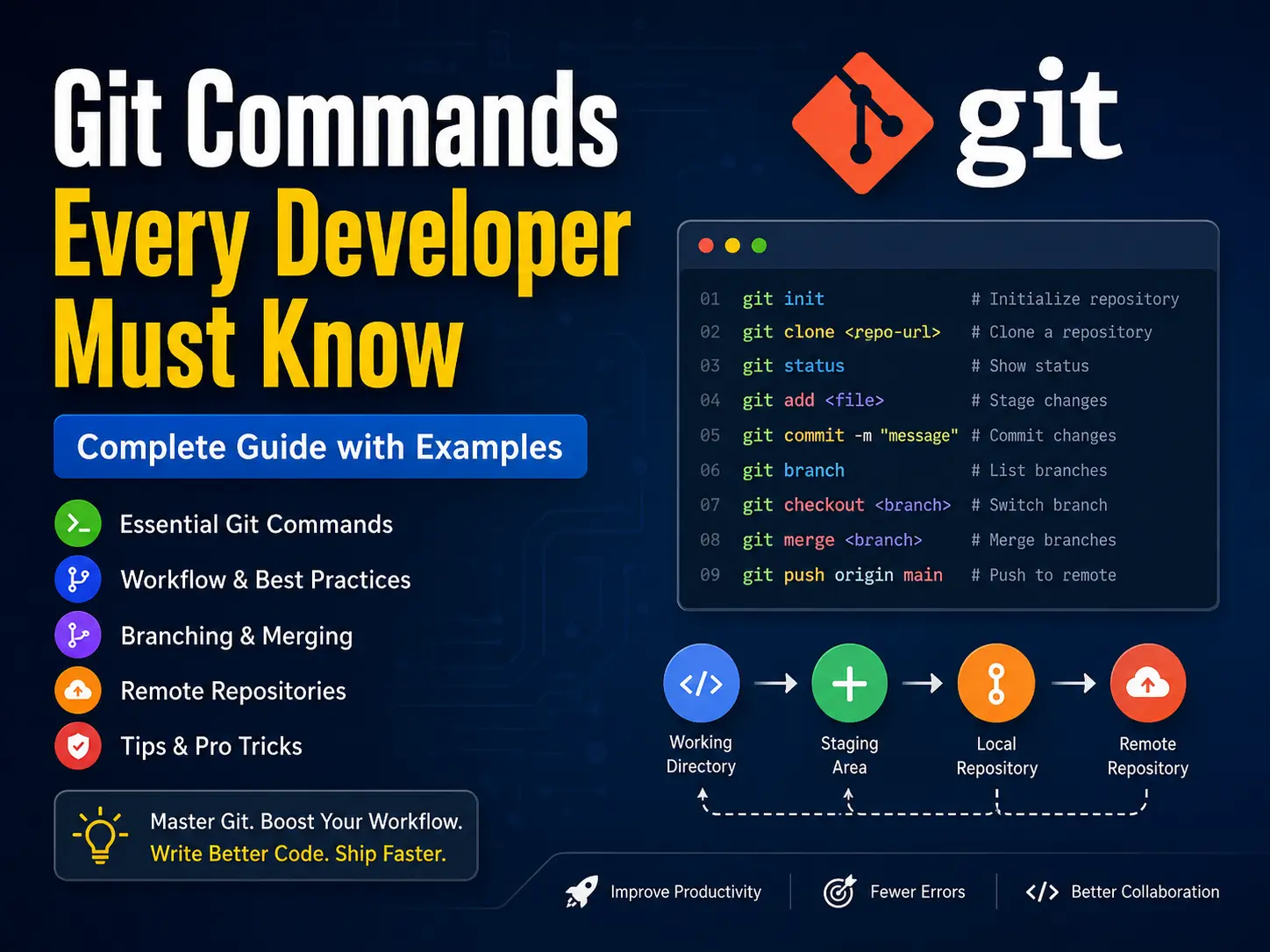
Git is the one tool every developer uses — regardless of whether you write React, Python, PHP, or anything else. But if you’ve ever stared at a terminal wondering which command to run, or accidentally messed up your codebase and had no idea how to fix it — this guide is for you.
In this post, we’ll cover the Git commands you’ll actually use every day — with real examples, plain-English explanations, and the mistakes to avoid. No fluff, just the commands that matter.
What is Git and Why Do You Need It?
Git is a version control system — it tracks every change you make to your code over time. Think of it as an unlimited undo button for your entire project, combined with the ability to work on multiple features simultaneously without breaking anything.
Without Git:
- One wrong change can break everything — with no way back
- Working with a team means constantly overwriting each other’s work
- There’s no record of what changed, when, or why
With Git, all of that is solved. It’s not optional — it’s the foundation of professional development.
Setting Up Git
Before anything else, configure Git with your name and email — this gets attached to every commit you make.
# Set your name and email globally
git config --global user.name "Your Name"
git config --global user.email "you@example.com"

# Check your config
git config --list

# Set VS Code as your default Git editor
git config --global core.editor "code --wait"
You only need to do this once per machine.
Starting a Repository
# Initialise a new Git repo in the current folder
git init

# Clone an existing repo from GitHub
git clone https://github.com/username/repo-name.git

# Clone into a specific folder name
git clone https://github.com/username/repo-name.git my-project
git init is for brand new projects. git clone is for existing repositories you want to download and work on.
The Basic Daily Workflow
These four commands make up 80% of your day-to-day Git usage:
# 1. Check what's changed
git status

# 2. Stage your changes
git add filename.js          # stage a specific file
git add .                    # stage all changes

# 3. Commit your staged changes
git commit -m "Add login form validation"

# 4. Push to remote (GitHub/GitLab)
git push origin main
Understanding the three areas of Git
| Area | What it is | Command to move here |
|---|---|---|
| Working directory | Files you’re editing right now | (edit files normally) |
| Staging area | Changes ready to be committed | git add |
| Repository | Committed history, saved permanently | git commit |
Viewing History and Changes
# See full commit history
git log

# Compact one-line history
git log --oneline

# See history as a visual graph (great for branches)
git log --oneline --graph --all

# See what changed in a specific commit
git show abc1234

# See unstaged changes (what you've edited but not staged)
git diff

# See staged changes (what's ready to commit)
git diff --staged
git log --oneline --graph --all is one of the most useful commands in Git — it gives you a clear visual map of your entire branch history.
Branching — Work on Features Safely
Branches let you work on a new feature or fix without touching the main codebase. Once it’s done and tested, you merge it back in.
# List all branches
git branch

# Create a new branch
git branch feature/login-page

# Switch to a branch
git switch feature/login-page

# Create AND switch in one command (most common)
git switch -c feature/login-page

# Delete a branch (after merging)
git branch -d feature/login-page

# Force delete an unmerged branch
git branch -D feature/login-page
Good branch naming habits
feature/user-auth— new featuresfix/navbar-bug— bug fixeschore/update-dependencies— maintenancehotfix/payment-crash— urgent production fixes
Merging — Bring Changes Together
# Switch to the branch you want to merge INTO
git switch main

# Merge your feature branch into main
git merge feature/login-page

# Merge with a commit message always (no fast-forward)
git merge --no-ff feature/login-page -m "Merge feature/login-page into main"
Handling merge conflicts
When two branches change the same line of code, Git can’t decide which version wins — that’s a merge conflict. Git marks it like this:
<<<<<<< HEAD
const title = "Welcome";        // your version (current branch)
=======
const title = "Hello World";    // incoming version (branch being merged)
>>>>>>> feature/login-page
Resolve it by editing the file to keep what you want, then:
git add filename.js
git commit -m "Resolve merge conflict in title"
Remote Repositories — Working with GitHub
# See your remote connections
git remote -v

# Add a remote (for new local projects)
git remote add origin https://github.com/username/repo.git

# Push to remote for the first time
git push -u origin main

# Push subsequent changes
git push

# Pull latest changes from remote
git pull

# Fetch changes without merging (safe preview)
git fetch origin

# Push a new branch to remote
git push -u origin feature/login-page
Tip: Use git fetch before git pull when working in a team — it lets you see what’s changed before merging it into your local branch.
Undoing Mistakes — The Commands That Save You
This section alone is worth bookmarking. Everyone makes mistakes in Git — knowing how to undo them is what separates confident developers from panicking ones.
Undo unstaged changes
# Discard changes in a specific file (back to last commit)
git restore filename.js

# Discard ALL unstaged changes
git restore .
Unstage a file (remove from staging area)
git restore --staged filename.jsAmend the last commit
# Fix the last commit message
git commit --amend -m "Corrected commit message"

# Add a forgotten file to the last commit
git add forgotten-file.js
git commit --amend --no-edit
Undo commits with git reset
# Undo last commit but keep your changes staged
git reset --soft HEAD~1

# Undo last commit and unstage changes (files stay edited)
git reset --mixed HEAD~1

# Undo last commit AND discard all changes (destructive!)
git reset --hard HEAD~1
⚠️ Warning: --hard permanently deletes your changes. Use it only when you’re absolutely sure.
Revert a commit (safe for shared branches)
# Creates a new commit that undoes a previous one
git revert abc1234
Use git revert instead of git reset when working on shared branches like main — it doesn’t rewrite history, so it won’t cause problems for your teammates.
Stashing — Save Work Without Committing
Need to switch branches but not ready to commit? Stash saves your work temporarily.
# Save current work to stash
git stash

# Save with a descriptive name
git stash save "WIP: login form styling"

# List all stashes
git stash list

# Apply the most recent stash (keeps it in stash list)
git stash apply

# Apply AND remove from stash list
git stash pop

# Apply a specific stash
git stash apply stash@{2}

# Delete a stash
git stash drop stash@{0}

# Clear all stashes
git stash clear
Tagging — Mark Important Points
# Create a lightweight tag
git tag v1.0.0

# Create an annotated tag (recommended for releases)
git tag -a v1.0.0 -m "Version 1.0.0 - Initial release"

# List all tags
git tag

# Push tags to remote
git push origin --tags
Tags are typically used to mark release versions — v1.0.0, v2.1.3 — so you can always check out exactly what was deployed at any point.
Useful Shortcuts and Power Commands
# Stage all changes AND commit in one command
git commit -am "Update navbar styles"

# See which branch you're on
git branch --show-current

# Rename the current branch
git branch -m new-branch-name

# Copy a specific commit from another branch
git cherry-pick abc1234

# Search commit messages
git log --oneline --grep="login"

# Find which commit introduced a bug (binary search)
git bisect start
git bisect bad          # current commit is broken
git bisect good v1.0.0  # this version was fine
Git Cheat Sheet — Quick Reference
| Command | What it does |
|---|---|
git init | Start a new repo |
git clone <url> | Download an existing repo |
git status | See changed files |
git add . | Stage all changes |
git commit -m "" | Save staged changes |
git push | Upload to remote |
git pull | Download + merge from remote |
git switch -c <name> | Create + switch branch |
git merge <branch> | Merge branch into current |
git stash | Save uncommitted work temporarily |
git log --oneline | View compact commit history |
git restore <file> | Discard changes in a file |
git reset --soft HEAD~1 | Undo last commit, keep changes |
git revert <hash> | Safely undo a commit |
git diff --staged | See staged changes |
Final Thoughts
Git has a reputation for being confusing — but once you understand the three areas (working directory, staging, repository) and the basic flow of add → commit → push, everything else clicks into place.
Start with the daily workflow commands. Get comfortable with branching. Then learn the undo commands — because you will need them, and knowing them turns a panic moment into a two-second fix.
Git is a skill that compounds. The more you use it, the more natural it becomes — and the more confident you’ll be working on real projects and teams.
If you’re building your frontend skills alongside Git, check out the guide on React Hooks explained and the JavaScript array methods every developer must know — both pair well with what you’ve just learned here.
Happy coding! 🚀






0 comments